Hunyuan 3D 3.1: Turn Images and Text into 3D Models
Hunyuan 3D 3.1 is a Chinese AI model developed by Tencent that turns images and text into 3D assets. Use it on China AI to create geometry-only or textured models, inspect them from every angle, and download a GLB for editing or a rotating GIF for client feedback.
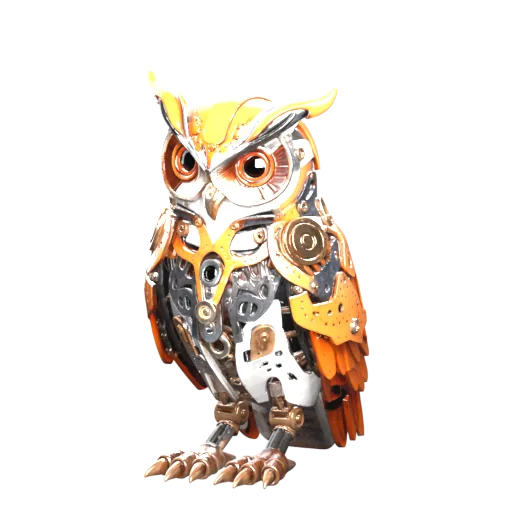
What Can You Create with Hunyuan 3D 3.1?
A flat reference can communicate a design, but it leaves questions about depth, proportions, and the surfaces outside the camera view. Hunyuan 3D helps you take the next step: turn that reference into an asset you can rotate, inspect, and develop. It also offers a text-to-3D route when the concept exists only as a written idea.
On China AI, the workflow extends beyond generation. Download the model for further editing, or export a rotating GIF to show a collaborator what you have made. That gives a designer and a client different ways to review the same concept without requiring both people to work in a 3D application.
| Your next task | Available workflow |
|---|---|
| Develop an existing photo or illustration | Single-image-to-3D input |
| Explore an idea without a reference image | Text-to-3D input |
| Inspect the shape before surface treatment | Geometry-only output |
| Review color and surface appearance | Textured output with optional PBR materials |
| Control mesh complexity | Face-count setting from 40,000 to 1,500,000 |
| Continue making the asset | Download the GLB model |
| Show the concept to someone else | Export a rotating GIF preview |
On this page: Image preparation · Output settings · GIF sharing · Model choice
Turn a Photo or Illustration into a 3D Model
Start with the image that explains the object, not necessarily the most dramatic photograph. A product surrounded by props, hidden in shadow, or cut off at the edge gives the model less usable information than a complete, clearly separated subject. For a character, make the pose and the spacing between limbs easy to read. For an object with handles or legs, keep those connections visible.
- Prepare one clear reference. Use a PNG, JPG, or WebP up to 6 MB. Keep the full subject inside the frame and remove distracting surroundings if they compete with its outline.
- Choose the Hunyuan image workflow. Open the AI 3D model generator, select Hunyuan 3D 3.1, and upload your image. Choose the output type according to what you want to inspect next.
- Review the whole model. Compare the silhouette with your reference, then rotate to the sides, back, and underside. Note what should be kept and what needs another attempt or manual editing.
If the background makes the object difficult to distinguish, the background remover can help prepare the reference. Check the cutout before using it: a clipped antenna, handle, or strand can remove exactly the detail you wanted to preserve. Background removal is a preparation option, not a requirement for every image.
Choose Geometry, Textures, and PBR Materials
Focus on shape with Geometry output
Choose Geometry when you need to assess the form, develop a base mesh, or prepare an object for further sculpting. Without surface color competing for attention, it is easier to notice a flattened back, a fused gap, or a proportion that only looked convincing in the original image. This is particularly useful when the final material will be created elsewhere.
Use textures when appearance is part of the decision
Textured output brings surface appearance into the review. Optional PBR materials are relevant when you want the material to respond to lighting in a 3D workflow. Review the model from more than one angle: a convincing painted detail may not correspond to a raised or recessed feature in the mesh. If physical shape matters, inspect geometry as well as color.
The face-count control lets you request a level of mesh complexity. More faces are not a substitute for a clear reference or correct proportions. Start with the default if you do not have a specific requirement, then consider the asset’s destination. A background game prop and a close-up display object have different detail needs, and both may need later optimization.
Start from Text When You Do Not Have a Reference
Text-to-3D is useful for exploring a standalone object before you commit to an illustration. Describe the main shape first, followed by the parts that make the object recognizable. Proportions and relationships are more useful than a long string of praise: explain whether a base is wide, a handle is curved, or panels overlap before deciding how polished the surface should look.
Keep the request focused on an asset. Describing an entire room with several objects, dramatic lighting, and a complex camera move introduces information that does not define the individual model you need. If the appearance becomes difficult to explain in words, develop a visual reference with text to image, choose a clear result, and use the image-to-3D route instead.
Treat the first model as a design conversation. Identify a concrete change—such as a clearer opening, a different proportion, or a simpler attachment—rather than repeatedly asking for a “better” result without changing the information supplied.
Build Character, Product, and Prop Drafts
Character concepts for early review
A character illustration can become a model for discussing volume and silhouette. Check the head-to-body ratio, the separation of arms and legs, and the size of accessories. Export a rotating GIF when the next task is showing the concept to an art director or client. Rigging and animation preparation belong to a later production stage.
Product shapes for presentation development
Use a clear product reference to explore how the object reads from additional angles. Inspect seams, openings, supports, and the back before placing the model in a presentation. Generated geometry is an interpretation of the image, so a design requiring exact manufacturing dimensions should be developed and measured in an appropriate modeling workflow.
Standalone props for a larger scene
Decorative objects, stylized equipment, and background props can be useful starting assets for scene construction. Evaluate them at their intended viewing distance. Small connectors or thin parts deserve close attention, while a distant object may benefit more from a strong silhouette than from dense surface detail. Keep the next editing task in mind when choosing what to download.
Share Your Hunyuan Model as a Rotating GIF
Share a model’s shape without asking a client to open a 3D file. In China AI, open the model detail view and select Download GIF to export a looping rotation preview. It gives collaborators a view of the asset from multiple angles in a familiar image format.
For client feedback, send the GIF with one focused question: does the silhouette match the concept, is the proportion right, or does the accessory feel too large? The recipient can review the preview in a GIF-compatible chat or presentation without importing a model file. This makes the early approval step easier to separate from final asset delivery.
For a portfolio or concept board, use the rotating preview to show more than the original front view. Keep the GLB alongside it for production work. The two downloads serve different purposes: the GIF communicates the design, while the GLB carries the 3D asset into the next tool. A rotation preview does not add character animation or an editable rig.
Check the Mesh Before Rendering, Editing, or Printing
Review the model according to its destination. For rendering, look for surface seams and distracting changes in the silhouette. For editing, inspect how the geometry represents important parts. For printing, check closed surfaces, wall thickness, dimensions, and whether thin attachments can survive at the chosen scale before preparing a slicer-compatible file.
The most useful check is often the view you could not see in the original image. A single photograph does not establish the exact back or underside, so those areas deserve a deliberate review. If a specific unseen surface must match a design, plan to edit it or use a workflow that accepts additional reference views.
Hunyuan 3D 3.1 vs 3.0 and the Open-Source Series
Hunyuan3D refers to a model family, not one interchangeable download. China AI currently offers Hunyuan 3D 3.1. Tencent positions that professional-model update around improved geometry precision and texture detail; earlier Hunyuan 3D 3.0 information should not be assumed to describe every current setting.
The open-source Hunyuan3D 2.1 release is another distinct route. Its local installation instructions and hardware requirements are not prerequisites for using the online generator here. Likewise, capabilities offered elsewhere in Tencent’s broader creation platform are not automatically available in this interface. For this workflow, plan around text or one image, geometry or textured output, and the visible controls above.
Hunyuan 3D vs Trellis 2, Meshy, and Tripo
Compare Chinese AI models—Tencent’s Hunyuan and VAST’s Tripo—with US-developed options including Microsoft’s Trellis 2 and Meshy, all in China AI’s 3D workspace. The main differences here are the references you can supply and the controls available for shaping the output.
Hunyuan 3D vs Trellis 2: text concepts or image references
On China AI, Hunyuan 3D 3.1 accepts text or a single image, while Trellis 2 starts from an image. Choose Hunyuan when you want to develop a written concept without preparing a reference first. If you already have a clear image, both are options: Hunyuan offers geometry-only or textured output, while Trellis exposes resolution, texture, and mesh-detail controls.
Use the same reference when comparing the two. Inspect whether the silhouette matches, whether a handle remains separate from the body, and how the unseen back has been interpreted. These checks help you choose a useful starting asset instead of judging only the front-facing preview.
Hunyuan 3D vs Meshy: additional references and texture guidance
Hunyuan and Meshy 7 both support text and single-image generation here. Meshy also accepts a set of reference images and, for textured output, a texture reference image or written texture description. If you need those inputs to communicate the design or surface treatment, Meshy gives you a route that Hunyuan’s current interface does not offer.
Hunyuan remains an option when one reference or a written concept is sufficient. Choose geometry-only output for a shape review, or textured output when appearance matters. Switching to a model with more input options is useful when you can supply relevant information, not simply because more controls exist.
Hunyuan 3D vs Tripo: when you have consistent views
Choose Tripo AI when you have matching front, side, or back references, or want its separate geometry-quality, texture-quality, and topology settings. Tripo’s multiview route needs two to four images, including a front view. Stay with Hunyuan when the immediate task is turning text or one clear image into a shape-focused or textured asset.
Use the 3D generator overview to compare the available inputs before generating. China AI’s rotating GIF export is available across these model workflows, so you can share candidate results for feedback without sending editable 3D files. Keep the input and viewing conditions consistent to make that feedback useful.
Frequently Asked Questions
Take Your Concept from a Flat Reference to a 3D Preview
Open the 3D generator and select Hunyuan 3D 3.1. Start with text or an image, inspect the shape, and download a model or rotating GIF for your next step.
Create with Hunyuan 3D