Seedream 5.5 AI Image Generator & Editor
Seedream 5.5 is ByteDance’s AI image generation and editing model for creators and design teams. Turn text and reference images into polished visuals, refine specific details, and create transparent PNG assets on China AI.
At a Glance
Start with an idea in the text-to-image generator, or bring an existing visual into the image editor. Choose Seedream 5.5 and shape the result around the asset you need.
| Setting | Available options |
|---|---|
| Starting point | Text or reference images |
| Reference images | Up to 10 |
| Output resolution | 1K, 1.5K, or 2K |
| Image format | PNG or JPG |
| Background | Auto, Opaque, or Transparent |
| Transparent assets | PNG output |
Seedream 5.5 Image Editing: Refine the Details
A strong image is often the starting point for a series of decisions. Refine a product color, replace a prop, or change an outfit while building on the composition you already like. Seedream 5.5 focuses on controlled edits that preserve the surrounding visual context.
For a product campaign, begin with the strongest product image and make one clear change at a time. Identify the feature to update, then describe the shape, framing, and lighting you want to retain. Use the selected result as the reference for the next revision. This gives each edit a specific purpose and makes competing versions easier to compare.
Create Transparent PNG Assets with Seedream 5.5
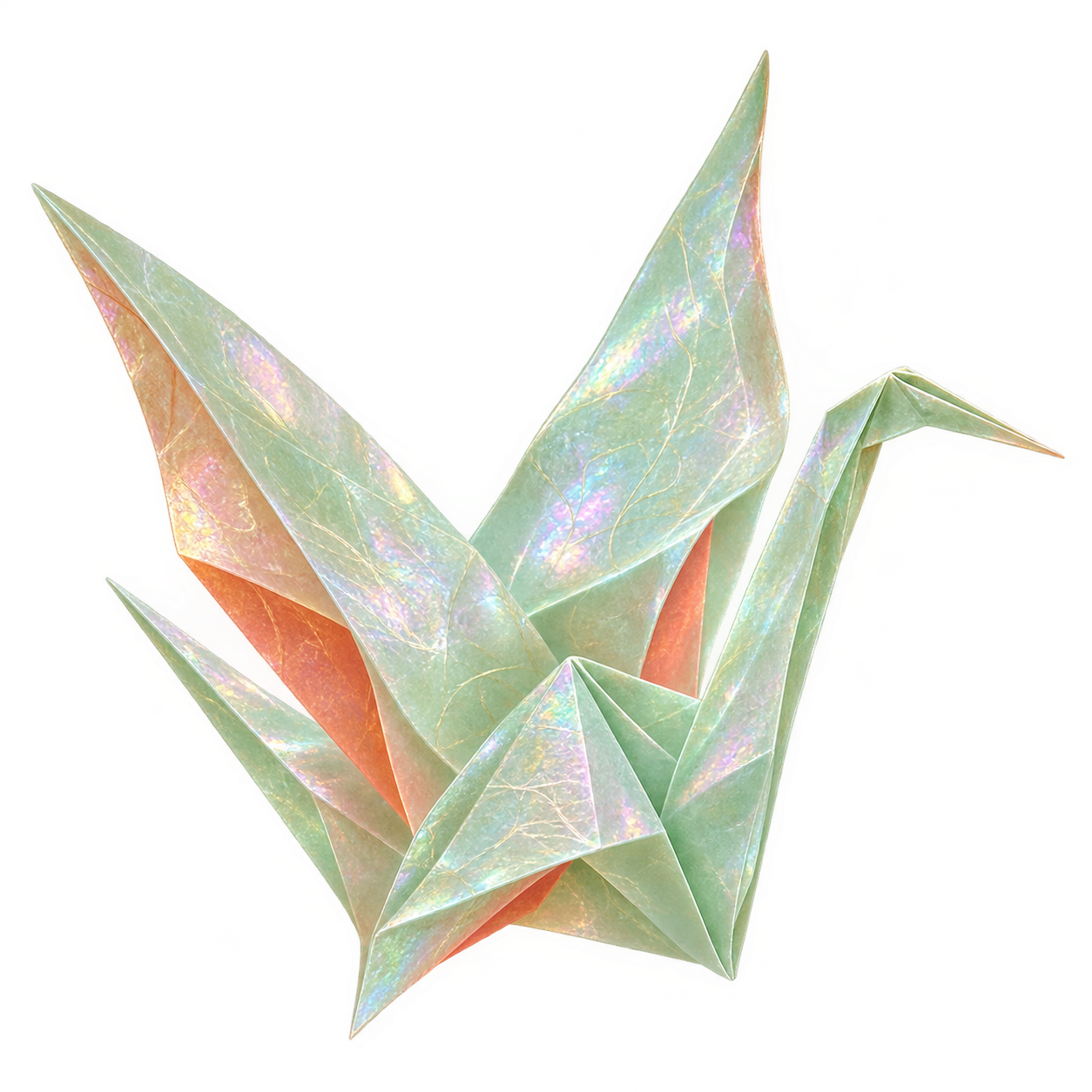
Build a sticker, character, decorative element, or product asset that can sit inside a larger design. Choose Transparent for the background and PNG for the output format, then describe the subject and the space it should occupy.
Plan the asset around its final placement. A sticker benefits from a clear silhouette and breathing room around its edges; a decorative element may need empty space for nearby text. After generation, place the PNG over the background you intend to use and check how the edges fit the layout. Explore the transparent image generator for more asset ideas.
Give Product Images and Posters a Finished Look
Seedream 5.5 brings particular attention to lighting, material detail, and image text. Use those strengths to give the visual a clear job: make a product readable, establish a mood, or organize a short message.
Product visuals with a clear focal point
Decide what the viewer should notice first: the shape of a bottle, the texture of fabric, or the finish of a ceramic surface. Specify the surface, lighting direction, camera angle, and surrounding space. Keep the product reference separate from references for color or mood, so each image has a clear role.
Posters with a clear reading order
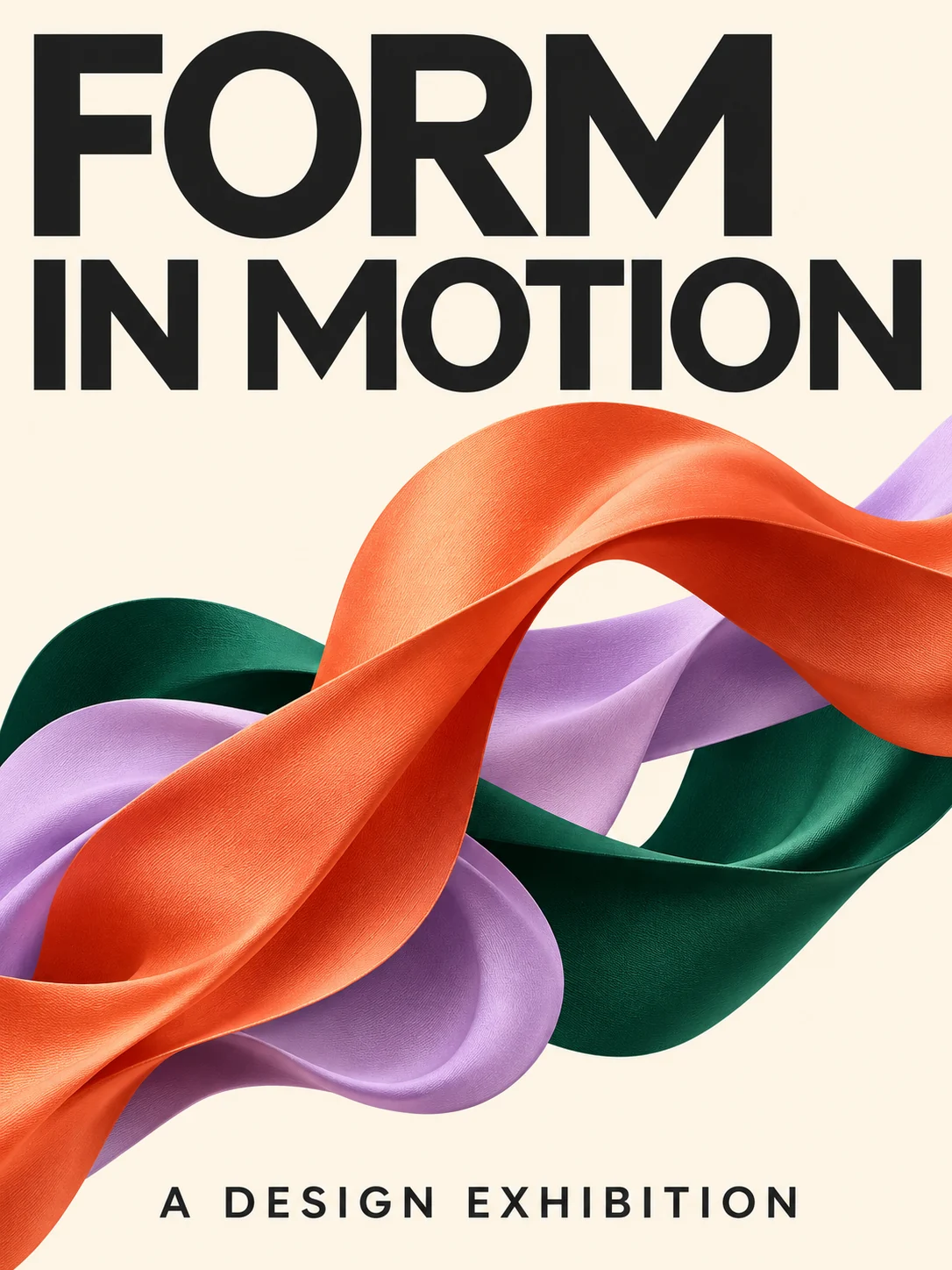
Organize the message into a headline, supporting line, and a small number of details. Describe where each text group belongs and how it should relate to the main image. Give the headline space to lead the composition, then refine a specific text area when the layout needs another pass.
Define the exact words to include and their positions. When using a reference poster, distinguish the layout and lettering style you want to borrow from any words you want to replace. For text-heavy work, compare the wording and reading order separately from the illustration: a striking image and an accurate message are two different parts of the brief.
How to Use Seedream 5.5 on China AI
1. Choose your starting point
Open the text-to-image tool to build a scene from an idea, or use image-to-image to work from a photo, illustration, or previous result. Select Seedream 5.5 in the model menu and add references when you want to guide the subject or visual direction.
2. Describe the result and select your settings
Describe the subject, composition, lighting, and intended use. For an edit, explain the change and the elements to preserve. Match the aspect ratio to the destination: a square product tile, a vertical poster, or a wide banner. Select your output resolution and choose Transparent with PNG when creating a reusable cutout.
3. Generate, select, and refine
Generate the image and choose the version that best fits the brief. To continue editing, use that result as the reference image and focus the next instruction on a specific change. Keep a selected version before exploring another direction, so you can compare the alternatives against the same brief.
| Your task | Suggested starting setup | What to describe |
|---|---|---|
| Product tile | 1:1, 2K, product reference | Product shape, framing, surface, and light |
| Vertical poster | 3:4 or 9:16, 2K | Reading order, image placement, and text hierarchy |
| Transparent sticker | 1:1, PNG, Transparent | Silhouette, expression, edge spacing, and style |
| Focused revision | Existing image, matching aspect ratio | The target change and the features to retain |
Seedream 5.5 Prompt Guide: Direct the Result
Build the instruction around the visual decision you want the model to make. A useful brief covers subject, composition, materials, lighting, and purpose. Add text placement when the image contains words, and explain which reference controls which part of the result.
Example: recolor a product
Upload a product reference image and specify the change alongside the details to preserve:
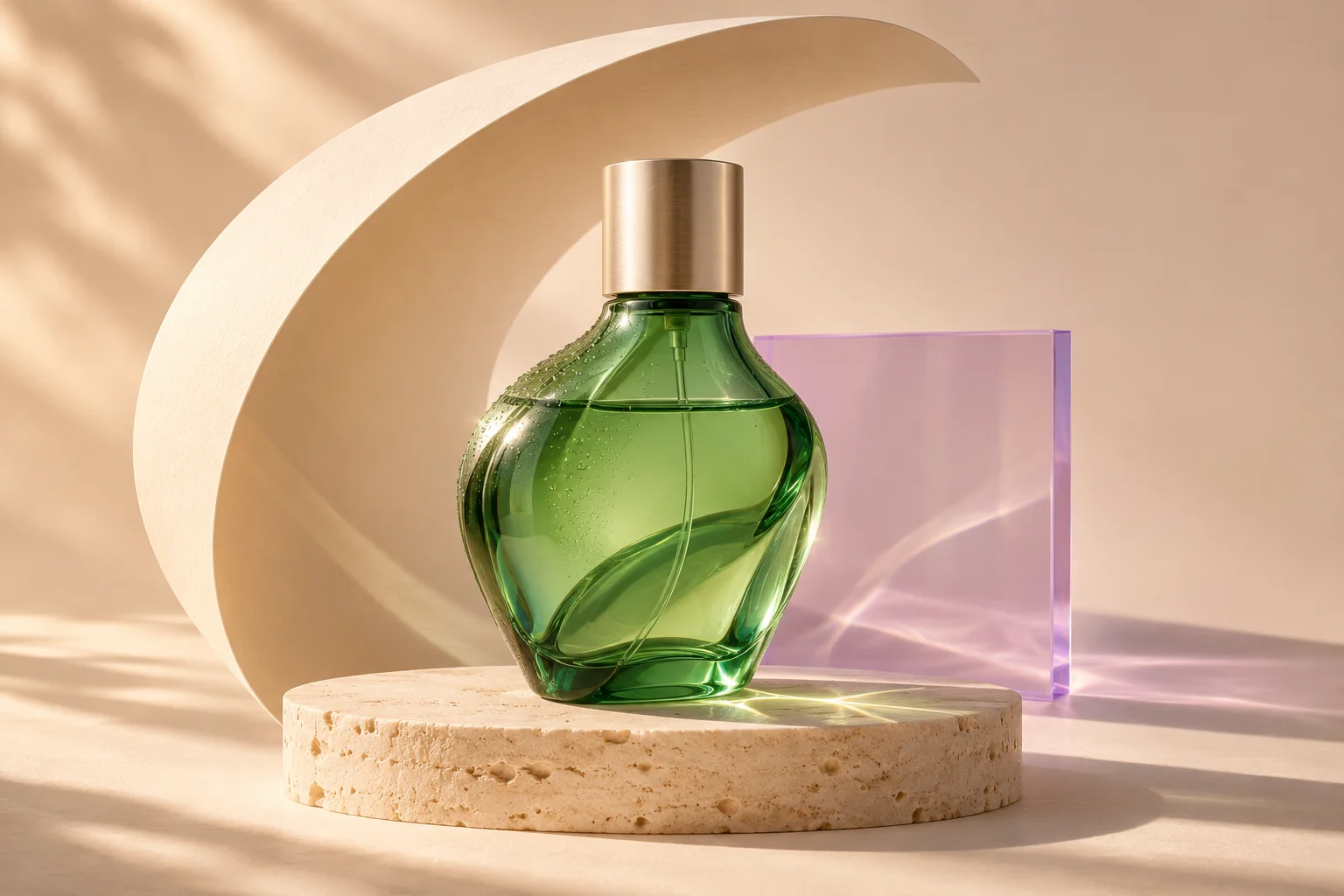
Change the green glass bottle to amber glass. Keep its shape, cap, camera angle, lighting, and background unchanged.
When using several references, distinguish the main subject from supporting examples of palette, texture, or framing. This helps turn a collection of images into a coherent brief. If a reference contains a date, label, or headline, identify whether that text should carry into the new image or be replaced.
What Changed from Seedream 5.0 Pro to 5.5?
Seedream 5.0 Pro already brought detailed layouts and image editing to the family. ByteDance’s release evaluation for 5.5 reports improvements in realism and text structure, alongside more stable successive edits. The practical shift is toward refining an approved composition and creating transparent elements for reuse. Choose 5.5 when your next steps involve adjusting individual details, developing related visuals, or producing assets to combine in another layout.
Seedream 5.5 vs Seedream 5.0 Lite
Choose Seedream 5.5 when your workflow centers on focused revisions and transparent assets. Seedream 5.0 Lite remains a useful option when the available reference count or output size is the deciding factor. The following settings describe the two models in China AI.
| Decision | Seedream 5.5 | Seedream 5.0 Lite |
|---|---|---|
| Output sizes | 1K, 1.5K, 2K | 2K, 3K |
| Reference images | Up to 10 | Up to 14 in image editing |
| A practical reason to choose it | Targeted revisions and transparent PNG assets | A brief needing 3K output or a larger reference set |
For repeated changes to a selected image, start with 5.5. For a reference-heavy composition that needs more than ten inputs, consider Seedream 5.0 Lite. Match the model to your reference count, output size, and revision workflow.
Seedream 5.5 vs Nano Banana 2.1
Seedream 5.5 is a practical starting point for iterative editing and transparent design assets. Nano Banana 2.1 offers another route when 4K output or an unusually wide or tall canvas is central to the brief.
| Your priority | Suggested choice | Reason |
|---|---|---|
| Transparent PNG assets | Seedream 5.5 | A dedicated transparent-background setting |
| A sequence of focused edits | Seedream 5.5 | A model direction centered on preserving surrounding content |
| 4K output | Nano Banana 2.1 | A selectable 4K output option |
| Extra-wide or extra-tall formats | Nano Banana 2.1 | Options including 4:1, 8:1, 1:4, and 1:8 |
Both are available from the image tool’s model selector. For a text-heavy poster, Nano Banana 2.1 is also a useful alternative to evaluate: use the same wording and references, then compare text accuracy, alignment, and reading order. For product visuals, judge the subject’s shape, materials, framing, and the details preserved after a revision. Choose the result that fits the brief rather than relying on a single overall score.
FAQ
Bring Your Next Visual to Life with Seedream 5.5
Start with a new idea or refine an image you already love. Shape the details and create assets for your next design.
Create with Seedream 5.5Explore More Image Models and Tools
Seedream 5 AI Image Generator by ByteDance
ByteDance's Seedream 5 (Lite on China AI) makes 2K–3K images with clean composition and strong style and identity consistency. See its features, limits, and how it compares to Seedream 4.5 and Nano Banana Pro.
Best Chinese AI Image Generators — Seedream & Z-Image
Compare Chinese AI image generators on China AI, including Seedream 5.5 for focused edits and transparent assets, Seedream 5 Lite and 4.5, and Z-Image. Choose a model for your creative task.
Best Chinese AI Models — Video & Image, Compared
The best Chinese AI models for image and video — Seedance, Kling, Seedream, Wan, and Z-Image from ByteDance, Kuaishou, and Alibaba — compared and ready to try on China AI.